Setup, RBAC and TruConnect
Initial station setup sequence
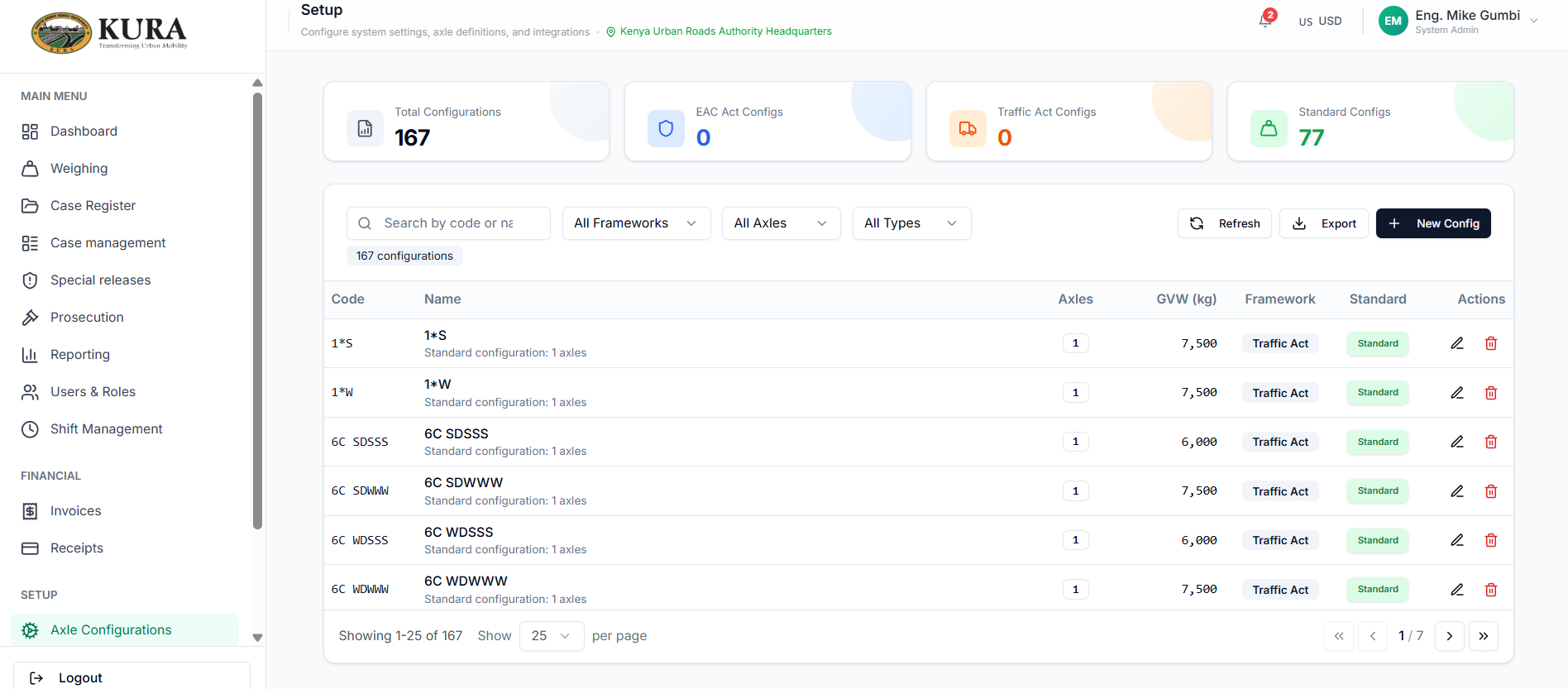
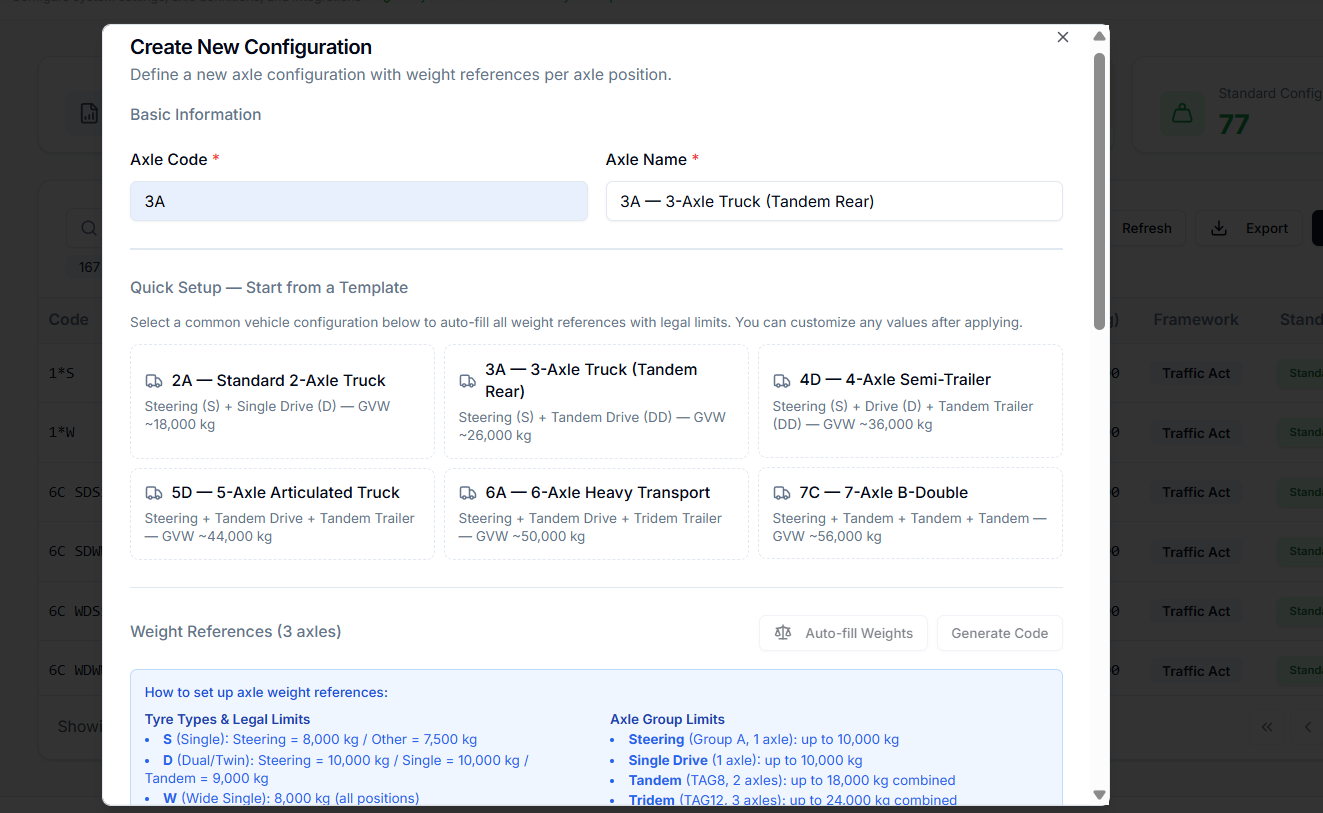
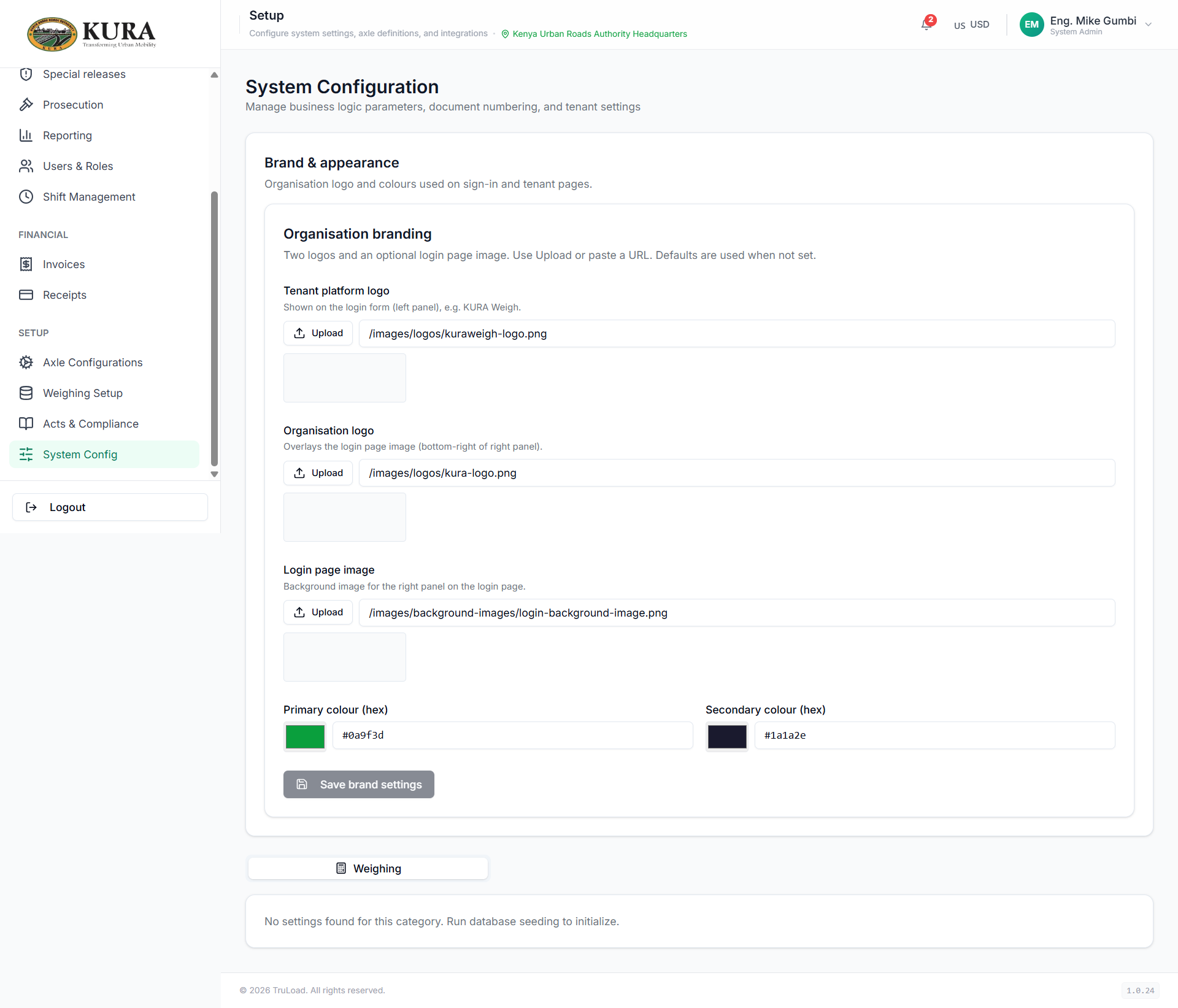
- Open setup modules and configure axle templates.
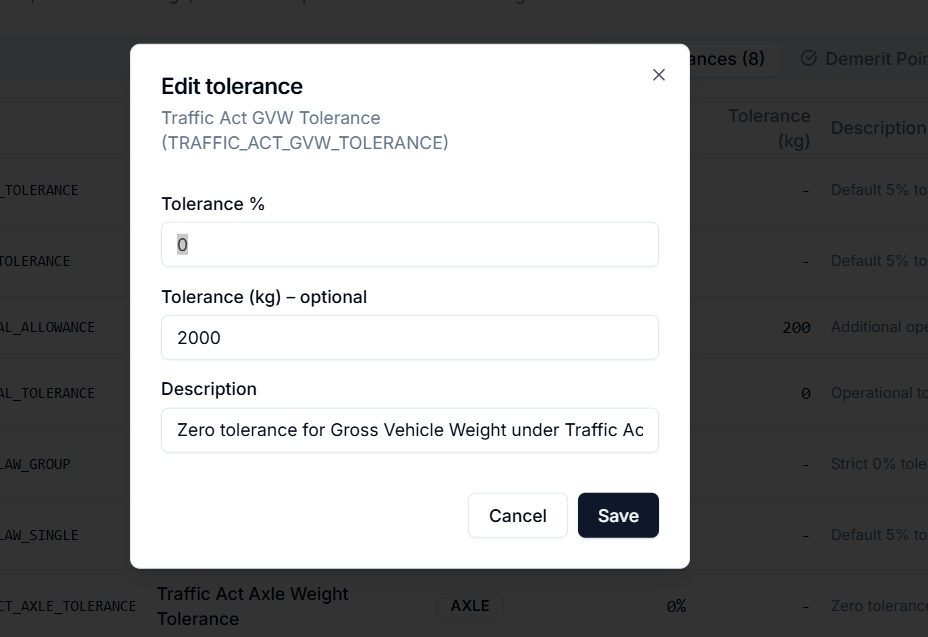
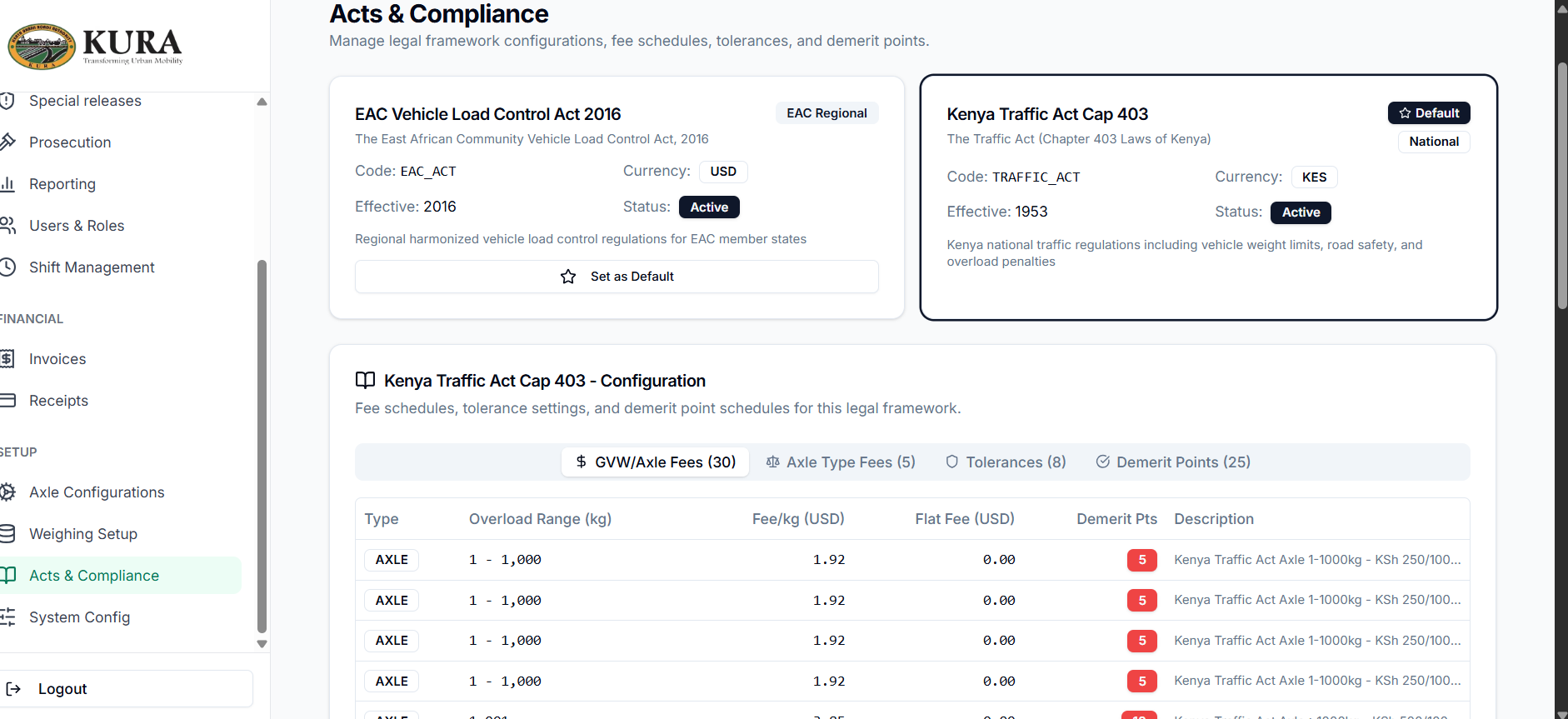
- Set tolerance values and legal/acts compliance parameters.
- Configure weighing metadata and system defaults.
- Save and verify values are active.
User, role, and shift management (RBAC)
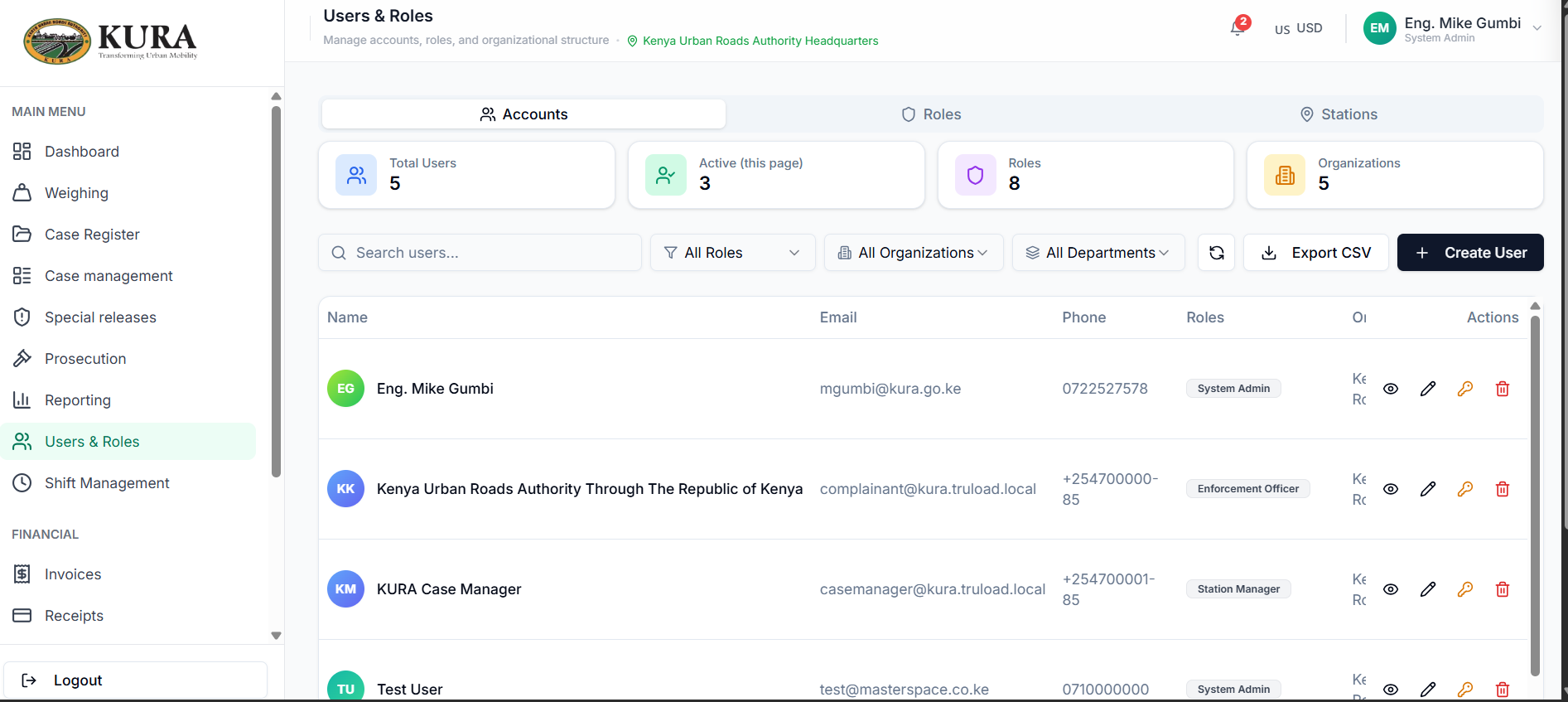
- Open accounts management.
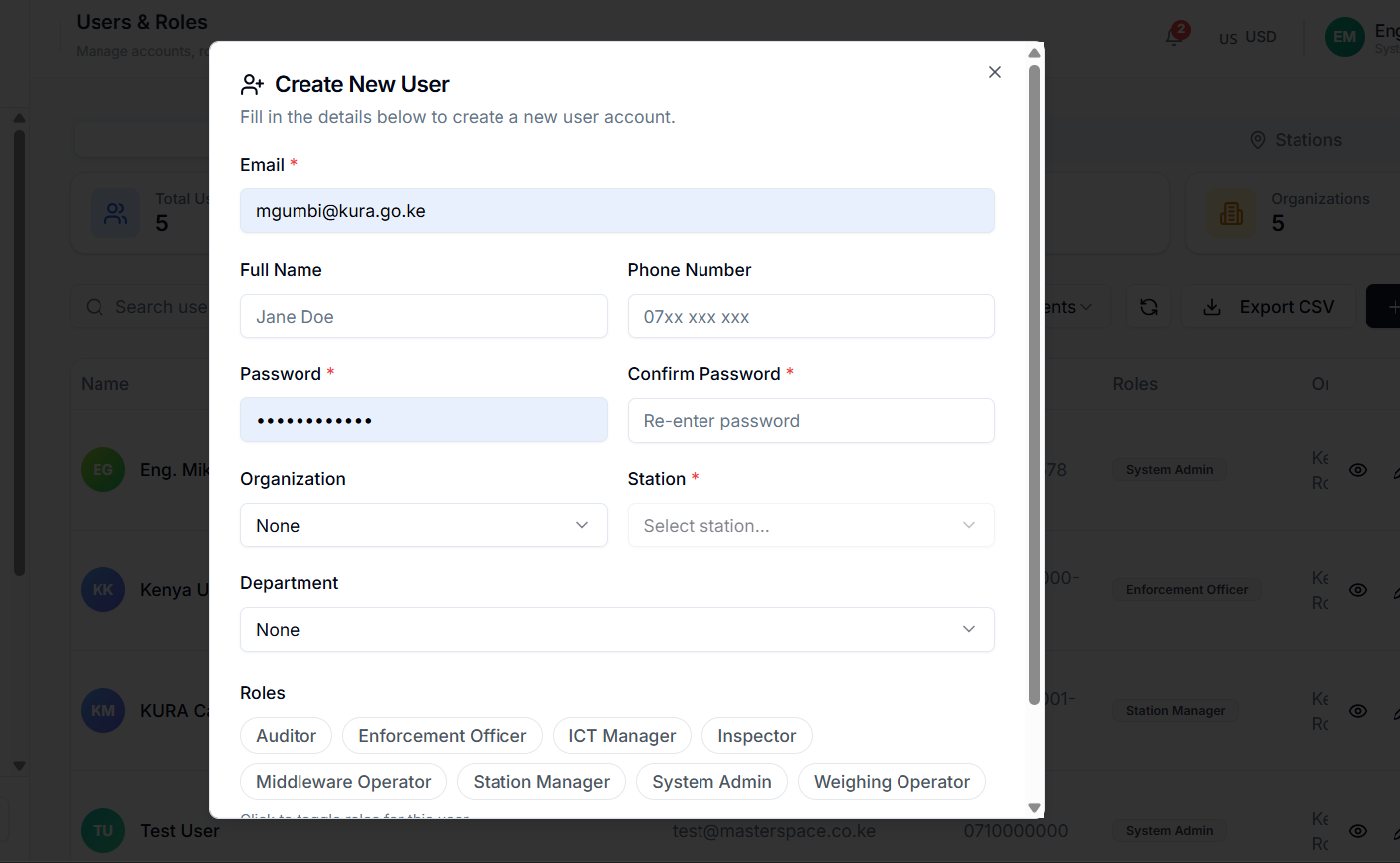
- Create users with correct station/department mapping.
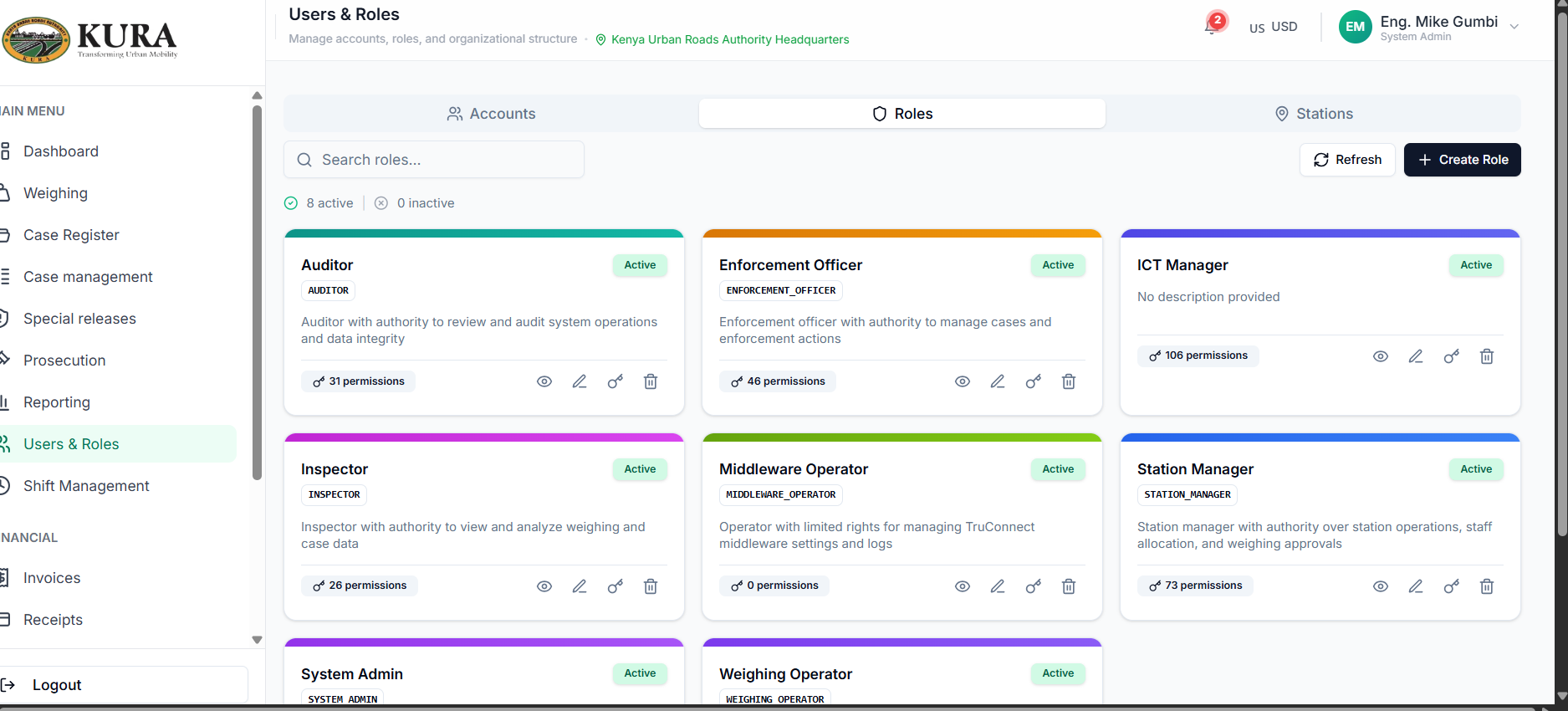
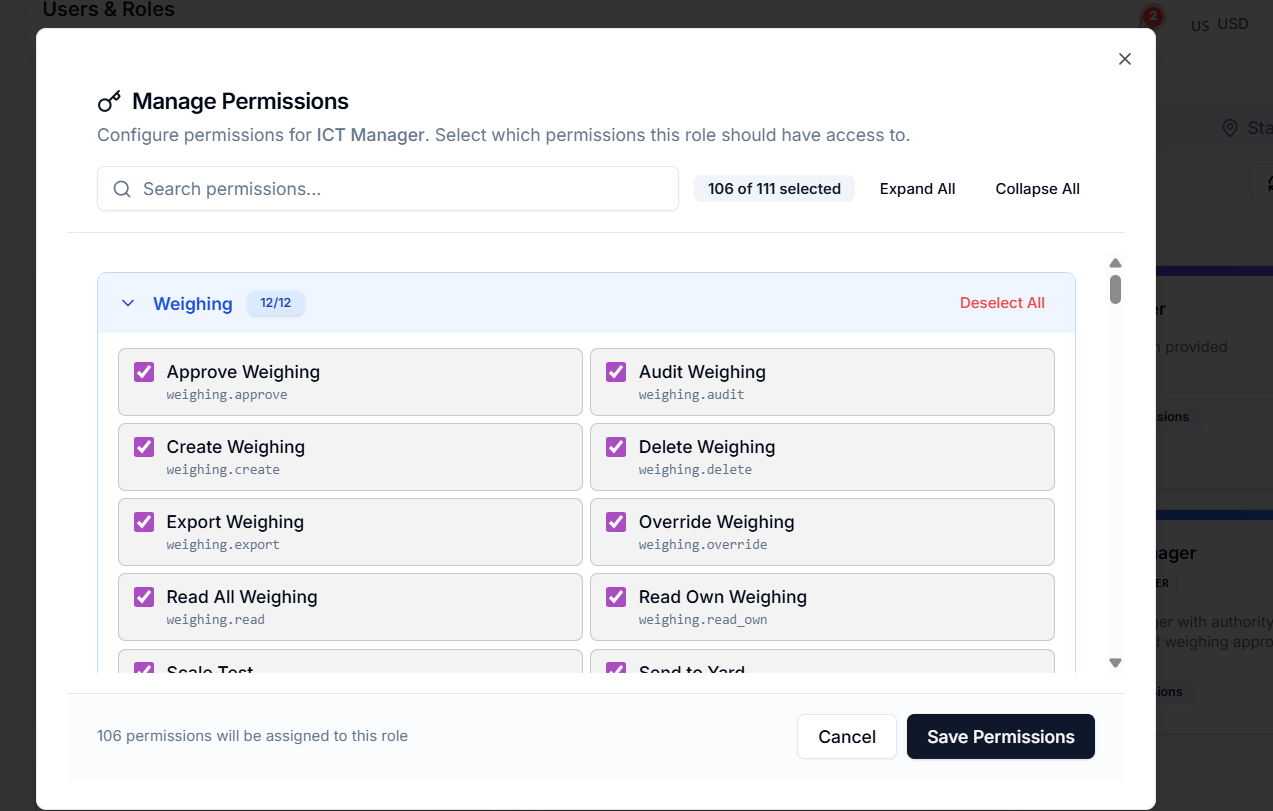
- Assign role and permissions.
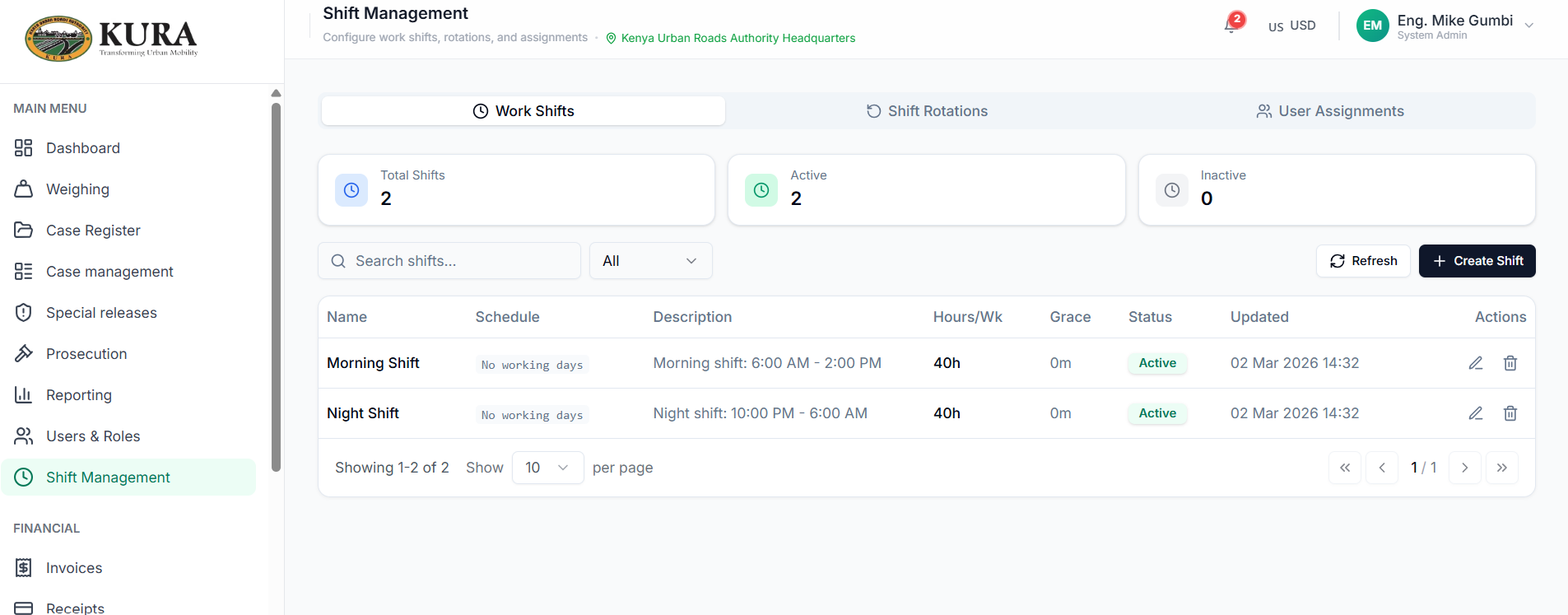
- Create shift rotations.
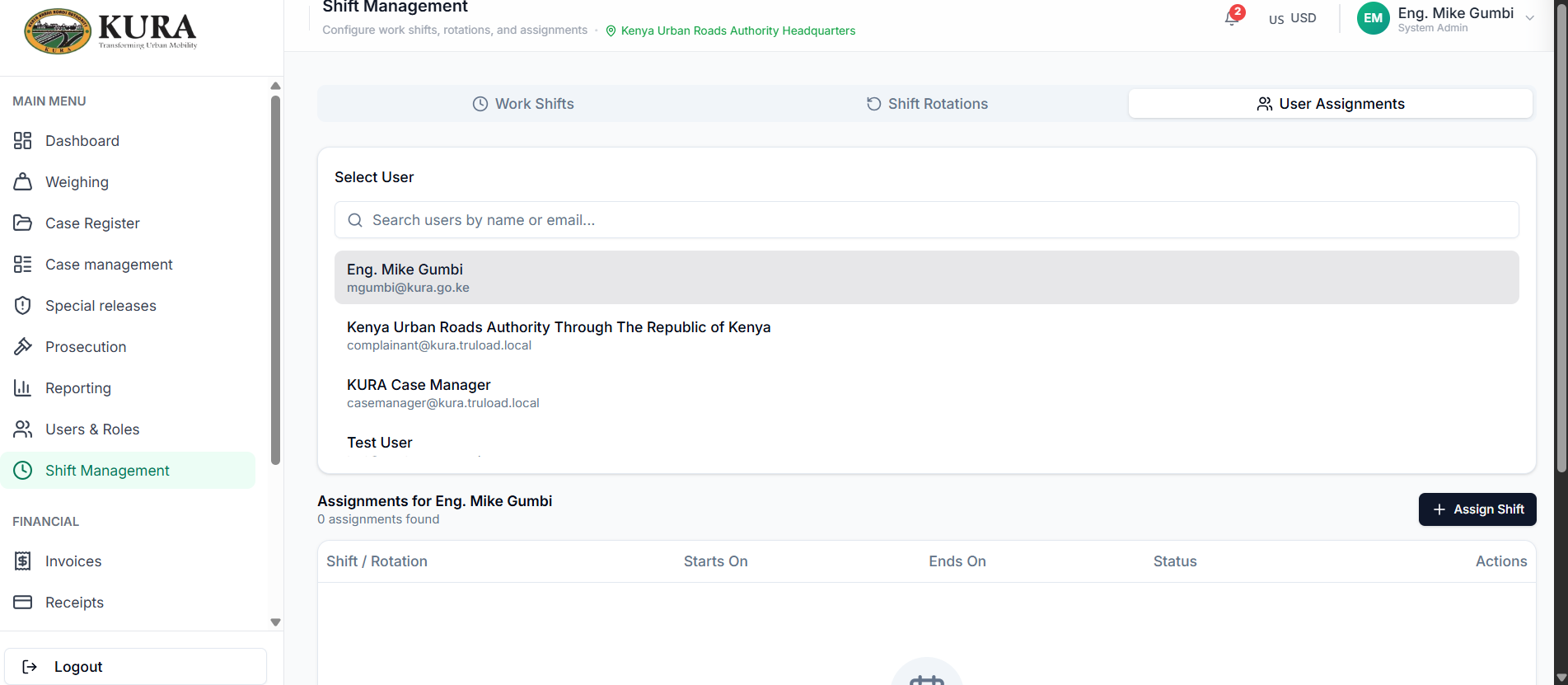
- Assign users to shifts.
- Verify login/module visibility from assigned role profile.
TruConnect configuration and verification
- Install and launch TruConnect on the workstation attached to scale hardware.
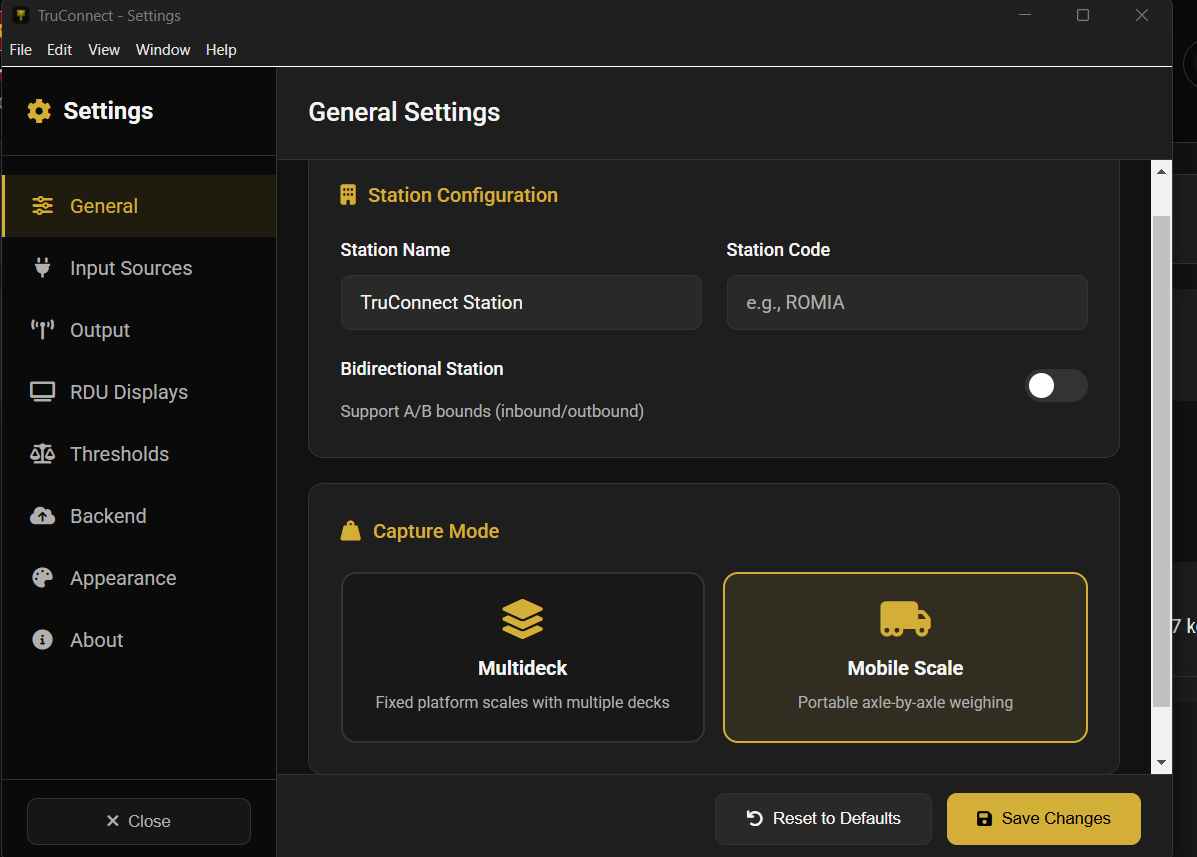
- Configure general settings and account credentials.
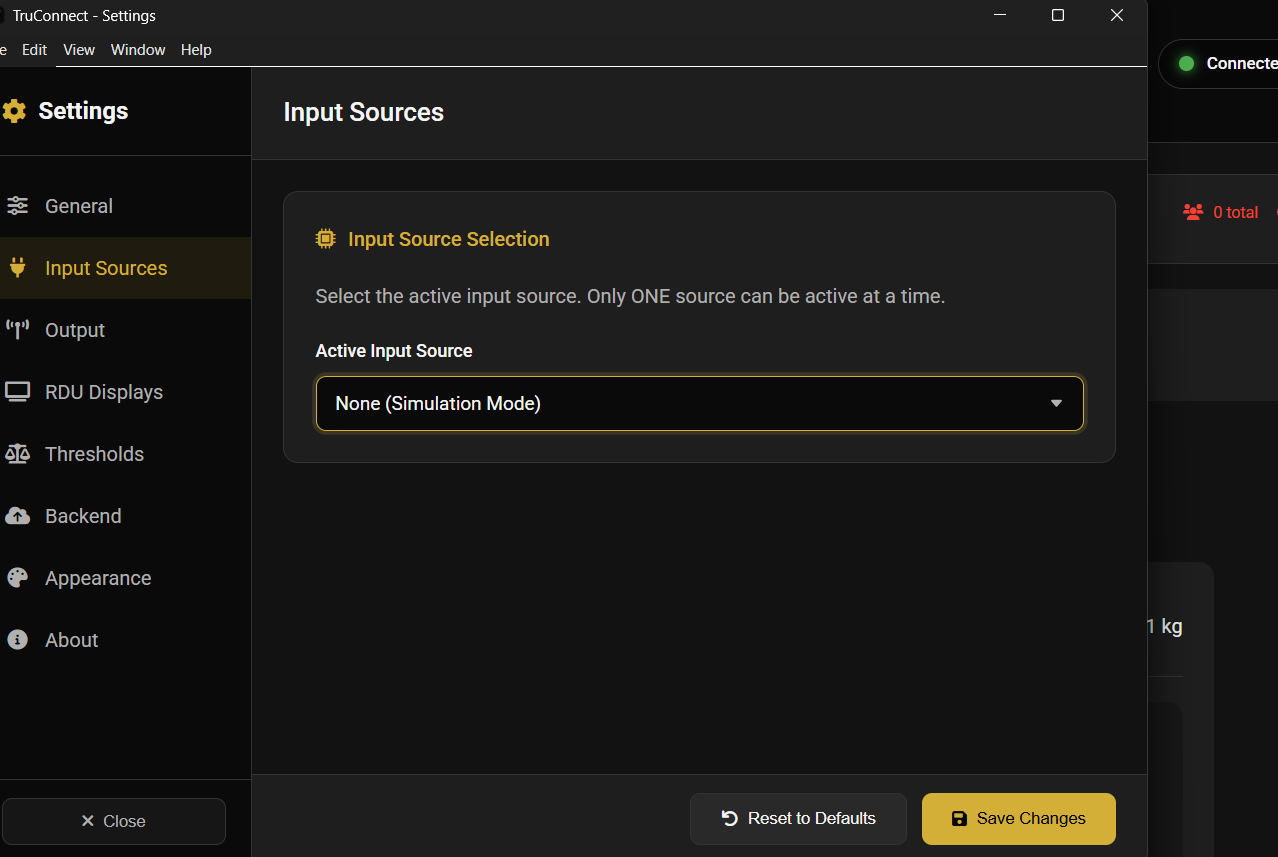
- Configure input source and output channels.
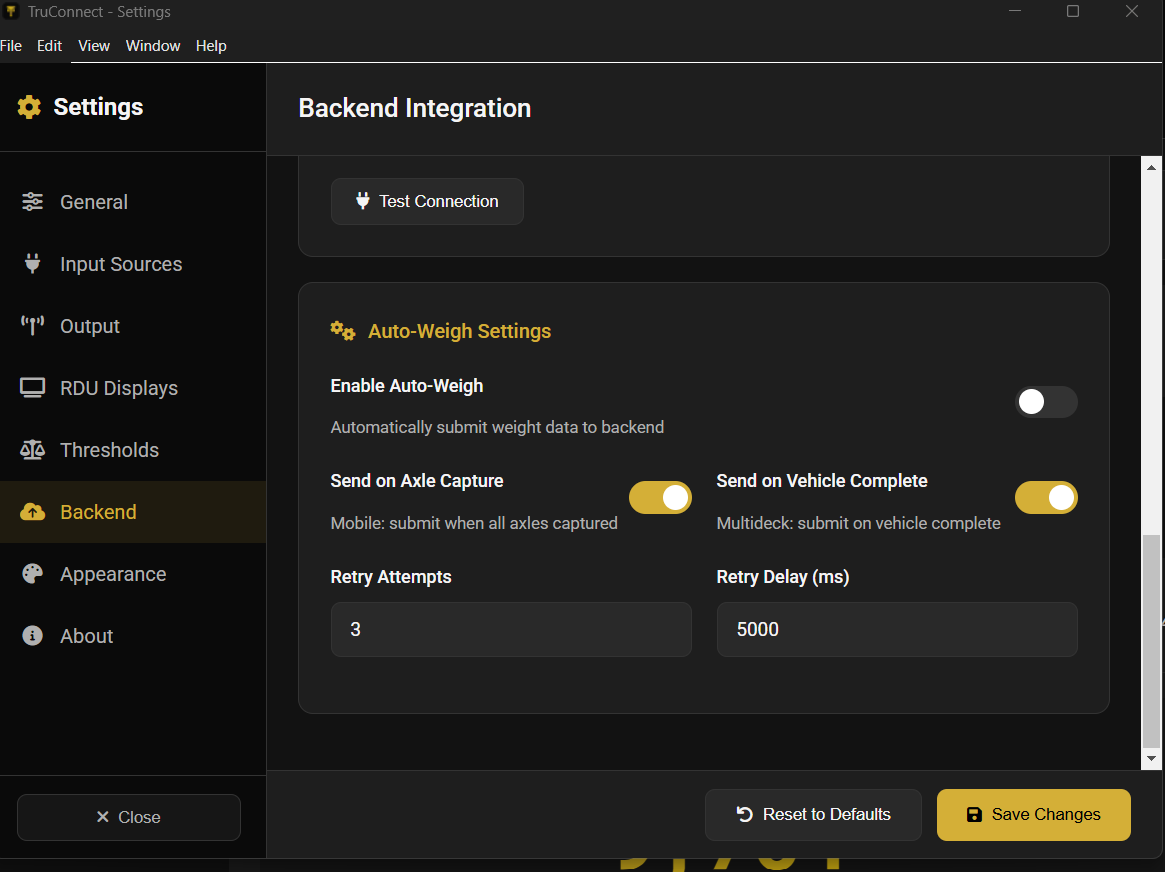
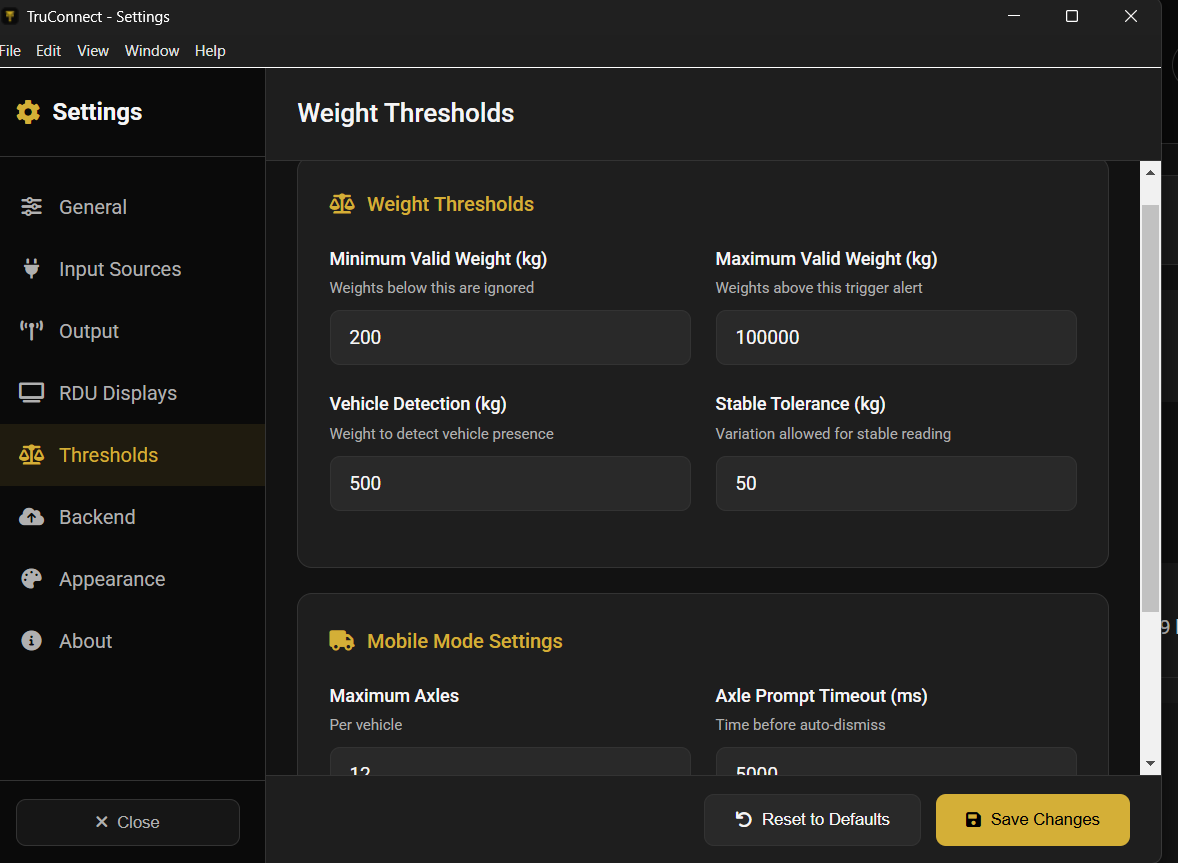
- Configure auto-weight and threshold behavior.
- Validate live data feed to frontend weighing screen.
- Confirm RDU and device mappings where used.
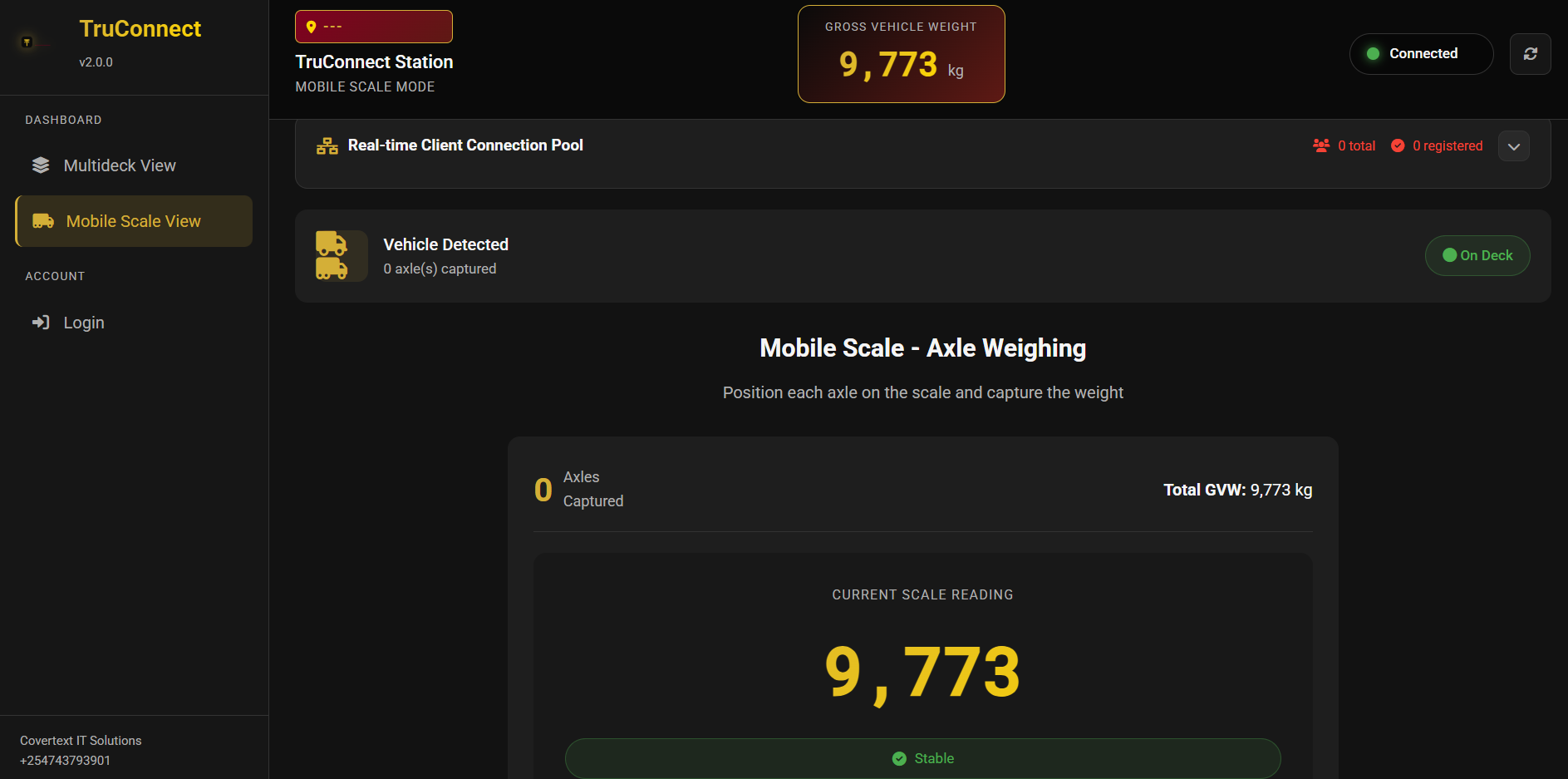
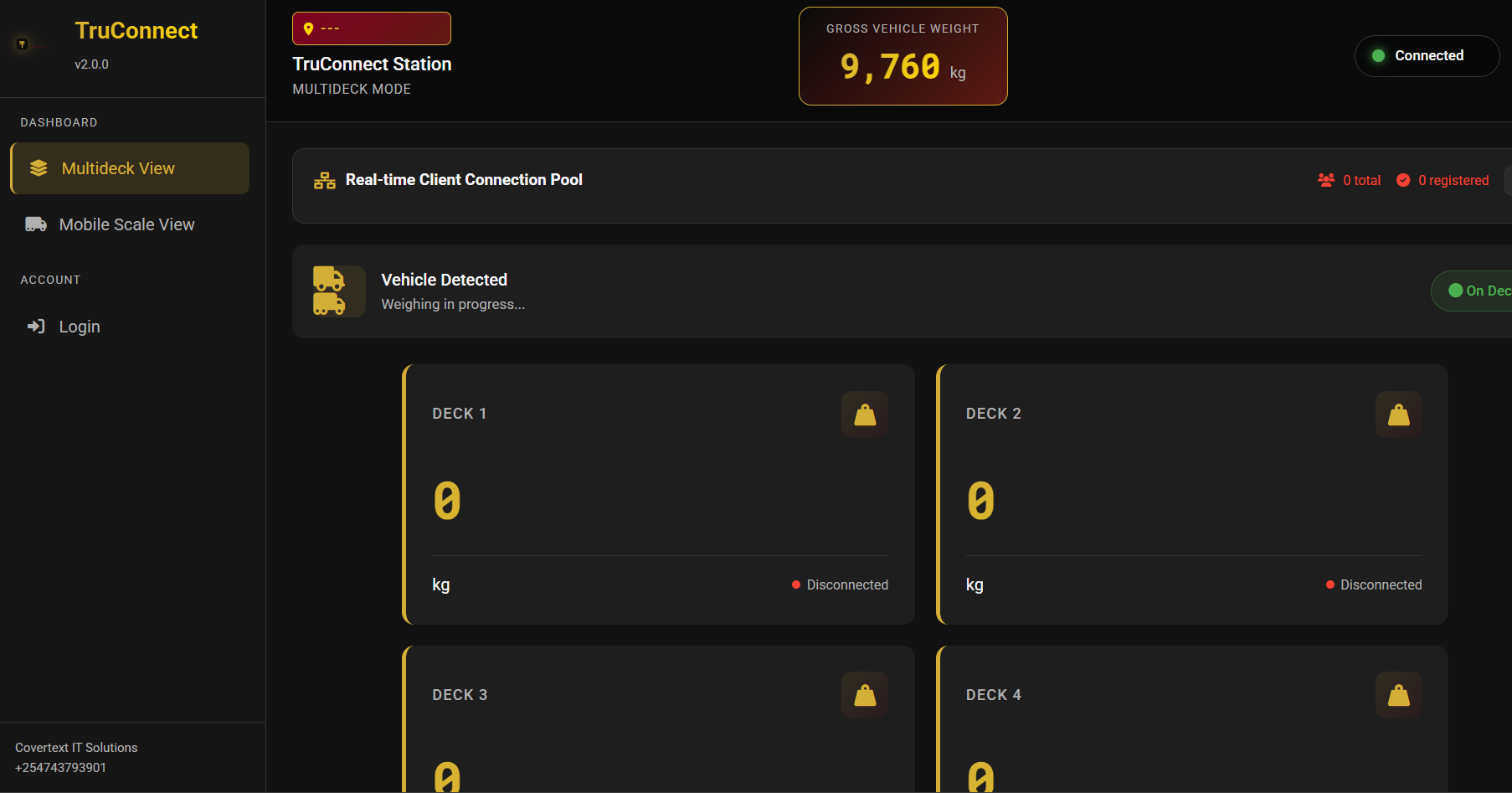
Mobile/Multideck screenshots below are stale (2026-09-11 offline-weighing redesign)
Both screens shown below predate a rebuild that added a "Weighing Setup" card (plate entry, axle-configuration picker, Enforcement/Commercial mode) and a provisional compliance/net-weight result panel, plus a cloud-connectivity badge and a pending-sync glance. Multideck's capture flow was also built from scratch; it previously had no interactive capture elements at all. Needs a manual recapture, not something this pass could regenerate.
Weighing metadata — vehicle makes and fleet
Vehicle makes (manufacturers) and the vehicle fleet are managed under Setup → Weighing Metadata.
Vehicle Makes tab
- The dropdown lists only active makes. If a make appears missing (e.g. HOWO, MAZDA, TOYOTA), it may have been soft-deleted during a data-cleanup run.
- Attempting to add a make whose code already exists (even if previously deleted) will restore the existing record rather than creating a duplicate. The restored make becomes active immediately.
- If you enter a code that conflicts with a currently active make, a conflict message is shown and no record is created.
Vehicles (Fleet) tab
- The vehicle list loads immediately when you open the tab — no search term required.
- Type into the search box to filter by plate number, chassis number, or engine number. Plate searches are space-normalised:
KCX091XandKCX 091Xmatch the same vehicle.
Post-setup validation checklist
- Weighing module receives live scale values.
- Required modules are visible for each role.
- Role restrictions are enforced correctly.
- Shift assignments reflect in operator routing and accountability.